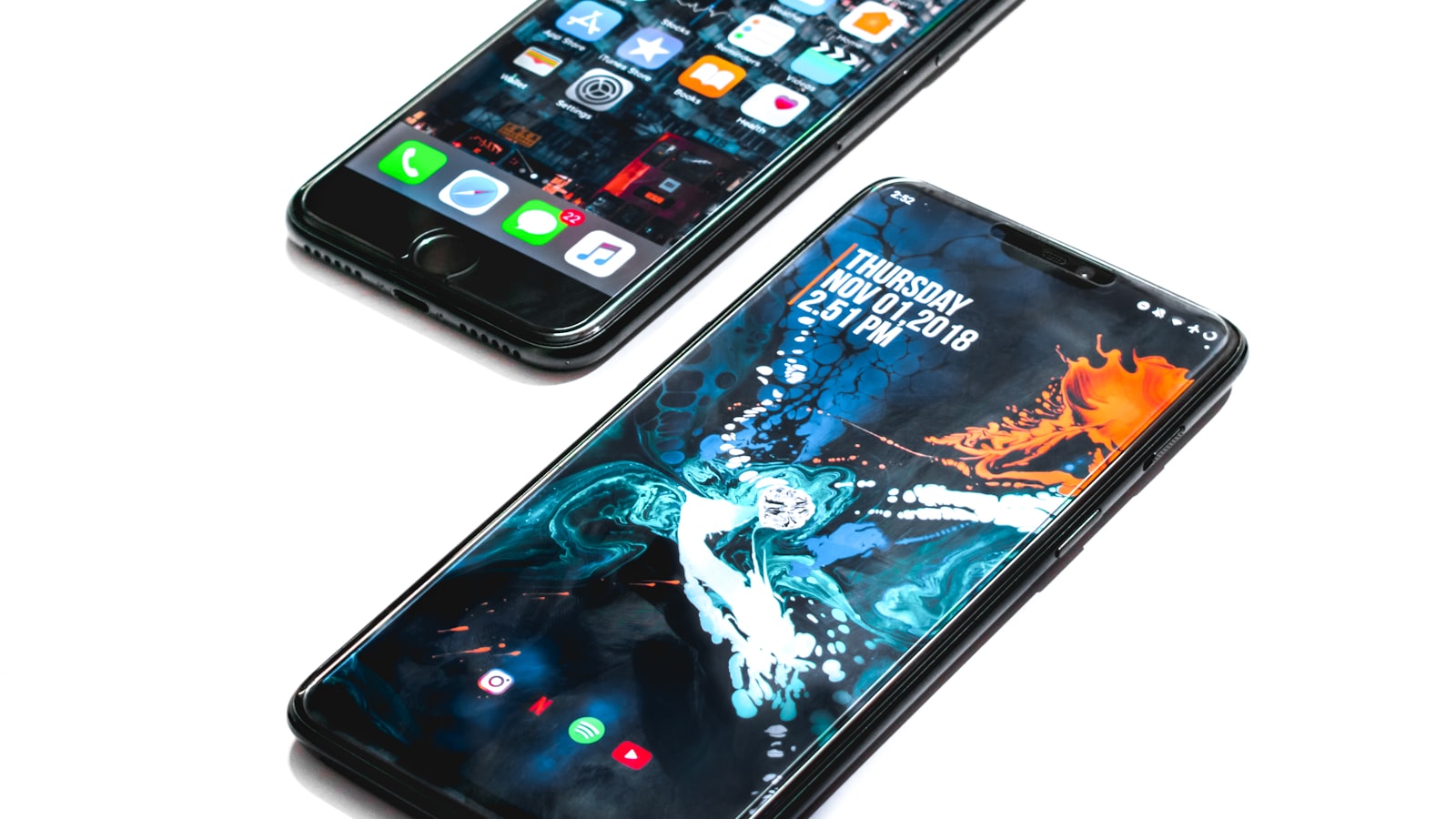
Open Settings right now and, in about two minutes, you can see every app that can reach your camera, microphone, and location, and shut off the ones that have no business being there. App permissions are just the gates your phone puts around its sensors and personal data, and both iOS and Android let you open or close any gate at any time, long after install. This guide shows exactly where those controls live, which ones actually matter, and the handful of mistakes that quietly leak the most.
What a permission really controls#
A permission is a per-app switch that governs access to one sensitive capability: your GPS location, microphone, camera, photo library, contacts, calendar, Bluetooth, nearby devices, or local files. When an app first needs one, the operating system, not the app, shows the prompt, and your answer is stored until you change it. While the switch is off, the app literally cannot touch that capability, no matter what its code tries to do.
Modern systems have made these switches far more granular than a plain yes/no. Location is the clearest example. On both platforms you can grant location "while using the app" instead of "always," and you can strip out precision so an app gets your rough neighbourhood rather than exact coordinates. That distinction is not cosmetic: a weather app works perfectly with approximate, background-free location, yet many still request the maximum by default.
Permissions are not the same as tracking#
People often conflate the two. Granting a permission does not mean consenting to be followed across apps. On iOS these are separate systems. App Tracking Transparency, the "Ask App Not to Track" prompt, governs whether an app may use your advertising identifier (the IDFA) to link your behaviour between other apps and websites. You can hand an app your camera and still deny it tracking, and you usually should. You control it under Settings > Privacy & Security > Tracking.
The permissions that deserve a second look#
You do not need to audit all forty toggles. A short list carries most of the risk.
- Location prefers "While Using" over "Always," and precise location off for anything that isn't turn-by-turn navigation. Background "Always" access is the single most revealing permission on a phone.
- Microphone and camera are only needed by apps you actively record or call with. On iPhone an orange dot means the mic is live and a green dot means the camera is; on Android a green dot appears top-right for either.
- Photos should use "Selected Photos" (iOS) or the system Photo Picker (Android 13 and later), which hand over only the images you pick rather than your whole library.
- Contacts leaks other people's numbers and emails, not just yours, the moment you share your address book. Grant it rarely.
The dangerous permissions nobody talks about#
The camera prompt gets all the attention, but the genuinely high-risk grants on Android hide under Settings > Apps > Special app access: Accessibility, "Display over other apps," Notification access, and "Install unknown apps." An Accessibility service can read everything on your screen and tap on your behalf. That is legitimate for a screen reader and catastrophic in the hands of malware, which is exactly why banking-scam apps beg for it. If an app you do not fully trust pushes you to switch on an Accessibility service, stop and uninstall it.
Where the controls live#
Both systems give you two ways in: browse by app, or browse by permission type. Browsing by type is faster for a cleanup, because you see, say, every app with microphone access in a single list.
On iPhone:
- Open Settings > Privacy & Security.
- Tap a category such as Location Services, Microphone, Camera, Photos, or Contacts to see every app holding it.
- Tap any app to change its setting. For location you will also see a Precise Location toggle.
- For a per-app view instead, scroll the main Settings list to the app itself; its permissions sit near the top.
- Bonus: Settings > Privacy & Security > App Privacy Report logs which sensors each app touched and which network domains it contacted.
On Android (wording varies by maker, for example Samsung One UI versus Pixel):
- Open Settings > Security & privacy > Privacy > Permission Manager, or just search "permissions" in Settings.
- Pick a permission type to see the Allowed, Ask-every-time, and Not-allowed groups.
- Tap an app to adjust it, including the Use precise location switch.
- Check the Privacy Dashboard for a 24-hour timeline of exactly when apps used location, camera, and microphone.
Turning a permission off almost never breaks an app. It disables that one feature, and you can flip it back instantly. Nothing here can damage your phone.
A ten-minute routine, once or twice a year#
Daily policing is not the goal; a light, repeatable pass is.
- At install, read the prompt. Ask whether the request fits the app's job. A recipe app wanting location, or a flashlight wanting contacts, is a red flag. You can say no now and grant it later if a feature genuinely needs it.
- Delete apps you no longer use. Removing an app strips every permission it held, which is cleaner than flipping switches one by one.
- Sweep the big four: downgrade "Always" location to "While Using," then re-check microphone, camera, and full photo access.
- Let the phone help. Android auto-resets permissions for apps you have not opened in months; confirm it under the app's info page ("Pause app activity if unused"). iOS surfaces the App Privacy Report and periodic location reminders you can act on.
Common mistakes people make#
- Tapping "Allow" by reflex. The prompt always lands when you are mid-task; that is precisely when to slow down for one second.
- Granting "Always" location when "While Using" would do. Background location is the data most valuable to brokers.
- Handing over the whole photo library instead of selecting a few images through the picker.
- Ignoring the special-access list while obsessing over the camera. Accessibility, notification access, and "display over other apps" are more powerful than most standard permissions.
- Assuming off means broken. Every toggle here is reversible in two taps.
FAQ#
Does denying a permission stop an app from working?#
Usually not; it disables only the feature that needs that permission. A messaging app with camera access denied still sends texts, you just cannot shoot a photo inside it until you turn the permission back on. If a core feature does break, the app will normally prompt you again the next time you use it.
What is the difference between "While Using" and "Always" location?#
"While Using" lets an app read your location only when it is open on screen, or briefly after you close it. "Always" allows background access even when you have not opened the app in days, which suits a few tools like navigation or find-my-device and is overkill for nearly everything else.
Are iPhone permissions more private than Android?#
Both now offer the same core controls: granular location, selected-photos access, and live camera and microphone indicators. iOS adds App Tracking Transparency for the advertising identifier, while Android adds the Privacy Dashboard timeline and auto-reset for unused apps. How carefully you set them matters far more than which platform you own.
Should I worry about the microphone listening to me?#
The orange or green indicator lights whenever the mic is active, so covert recording by an ordinary app is hard to hide. The realistic risk is not secret listening but apps you granted mic access to long ago and forgot. A yearly sweep of the microphone list in Settings closes that gap.